
The Issue
Unity 2022 is a popular game development engine that has recently been released with a range of new features and improvements. However, some developers have reported issues with decal projectors not working in Android builds.
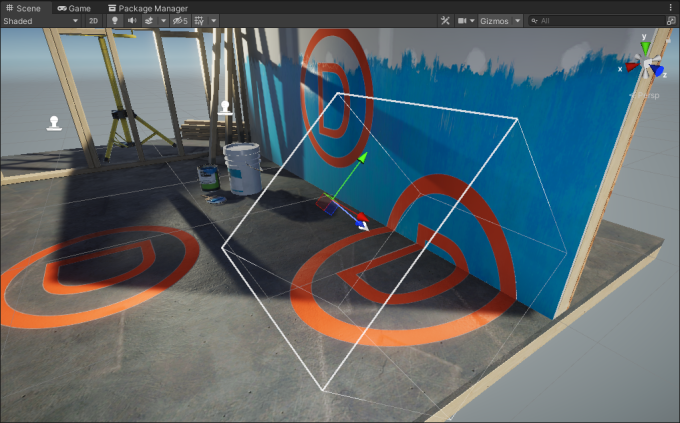
Decal projectors are an important part of creating realistic environments in games, as they allow developers to add decals or textures to surfaces in the game world. Unfortunately, Unity 2022 currently has a bug that prevents decal projectors from working correctly in Android builds.
Current Status
This issue has been acknowledged by Unity Technologies, and while they are working to find a solution, there is currently no official fix. In the meantime, developers who rely on decal projectors in their games may need to stay on Unity 2021 or find alternative solutions.
📌 Update: Check Unity’s bug tracker for the latest status on this issue. The bug ID is typically referenced as Case #XXXXX in their internal tracking system.
Workarounds and Alternatives
Option 1: Stay on Unity 2021 LTS
If decal projectors are critical to your project, consider staying on Unity 2021 LTS until the bug is fixed in a future 2022 release.
Option 2: Use Alternative Decal Solutions
Several third-party assets and techniques can replace Unity’s built-in decal projector:
| Solution | Type | Cost | Quality |
|---|---|---|---|
| Final IK Decals | Asset | Paid (~$30) | High |
| Custom Shader Decals | DIY | Free | Medium-High |
| Sprite Decals | DIY | Free | Low-Medium |
Custom Shader Approach (Free)
Create a simple decal system using a transparent quad with a custom shader:
using UnityEngine;

[ExecuteInEditMode]
public class SimpleDecal : MonoBehaviour
{
    public Texture2D decalTexture;
    public float size = 1f;
    public float fadeDistance = 5f;

    private MeshRenderer renderer;

    void Start()
    {
        if (decalTexture == null) return;

        // Create a quad mesh
        MeshFilter mf = GetComponent<MeshFilter>();
        if (mf == null) mf = gameObject.AddComponent<MeshFilter>();

        mf.mesh = CreateQuadMesh();

        // Set up material
        Material mat = new Material(Shader.Find("Transparent/Diffuse"));
        mat.mainTexture = decalTexture;
        renderer = GetComponent<MeshRenderer>();
        if (renderer == null) renderer = gameObject.AddComponent<MeshRenderer>();
        renderer.material = mat;
    }

    Mesh CreateQuadMesh()
    {
        Mesh mesh = new Mesh();
        Vector3[] vertices = new Vector3[4]
        {
            new Vector3(-0.5f, 0, -0.5f),
            new Vector3(0.5f, 0, -0.5f),
            new Vector3(0.5f, 0, 0.5f),
            new Vector3(-0.5f, 0, 0.5f)
        };

        int[] triangles = new int[6] { 0, 1, 2, 0, 2, 3 };

        mesh.vertices = vertices;
        mesh.triangles = triangles;
        mesh.RecalculateNormals();

        return mesh;
    }
}
Option 3: Bake Decals into Textures
For static environments, consider baking decal effects directly into your texture maps using tools like:
- Substance Painter – Paint decals directly onto UV maps
- Photoshop/GIMP – Manual texture editing
- Blender Texture Painting – Free alternative for texture work
Keep an Eye on Unity’s Official Forums
Developers can keep an eye on Unity’s official forums (see this post) for updates on this issue, as well as to see if any workarounds or alternative solutions have been identified by the community.
Related Resources
- Mobile Game Design Process – Design considerations for mobile
- Why Is My Unity Build Slow? – Optimize your build pipeline
- Best Unity Assets 2025 – Alternative decal solutions
Have you found a workaround for this issue? Share it in the comments below! 🔧✨